![CTOS_RGB_Stacked.png]](https://knowledge.customtruck.com/hs-fs/hubfs/CTOS_RGB_Stacked.png?height=40&name=CTOS_RGB_Stacked.png)
Once you are signed in, navigate to the [MY ACCOUNT] link on the top left of the header bar and click on the link to display the report menu tiles.
Detailed Reports – This page displays the report categories that are currently offered – e.g., Testing Results, Backlog Report, and Wash & Hold report. Click on a specific report to view it on the page.
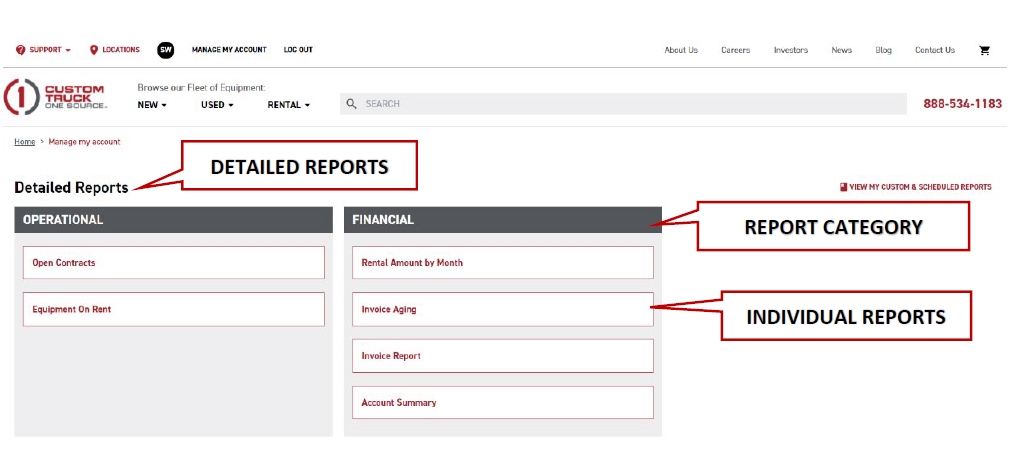
Reports not showing - If you are seeing a blank page, this means that you may not have permission to access certain or all reports – please contact your account representative who can assist you in addressing this issue. Additionally, if you are not seeing a specific report, our initial report roll-out has a limited number of reports, but we are continually releasing new reports on a regular basis.
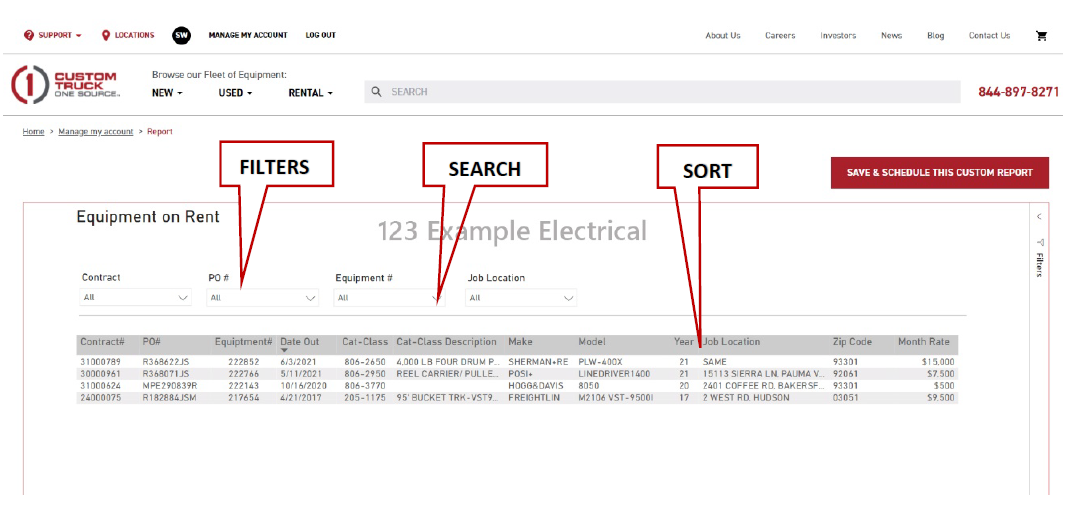
Once the report is displayed on the page, the user can filter, search and sort the report further with various filters, sort headers and search bars.
- Filter – Drop-down filters and date parameters above the report data allows the user to multi-select the relevant data they want to appear in their report
- Sort –Clicking on the column header will sort the report in ascending or descending order
- Search – A drop-down filter includes a search field which allows the user to search with a numeric or alphabetical search term for the desired results.
Exporting Reports
Most reports* are embedded from Power BI. To export a report in an XLS format, hover above any of the drop-down filters to display three dots as per image below -

Click on the three dots, hover over the [Export Data] link, click on it, select the [Summarized Data] tab, leave it on the default 150k rows and click on the [Export] button. The report will download to the download or a specified folder on your computer.
Available Rubber Testing Reports
The following reports provide visibility into dielectric testing activity, work order status, and completed test results. Each report serves a different purpose depending on where your equipment is in the testing lifecycle.
1. Wash & Hold Report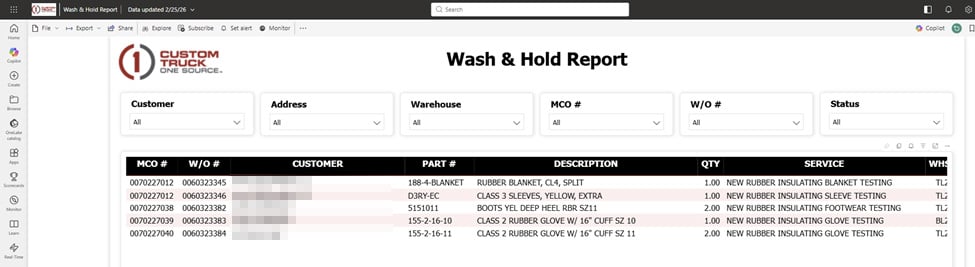
The Wash & Hold Report provides a real-time view of rubber goods that have been received and are currently in the cleaning, holding, or pre-testing stage. This report is useful for tracking items that are in process but not yet completed.
Users can identify:
- Items that have been received and logged
- Current status prior to testing completion
- Associated work order and part details
- Quantities and service types (e.g., insulating glove testing)
This report is typically used to monitor inbound workflow and ensure items are progressing through the testing pipeline.
2. Backlog Report
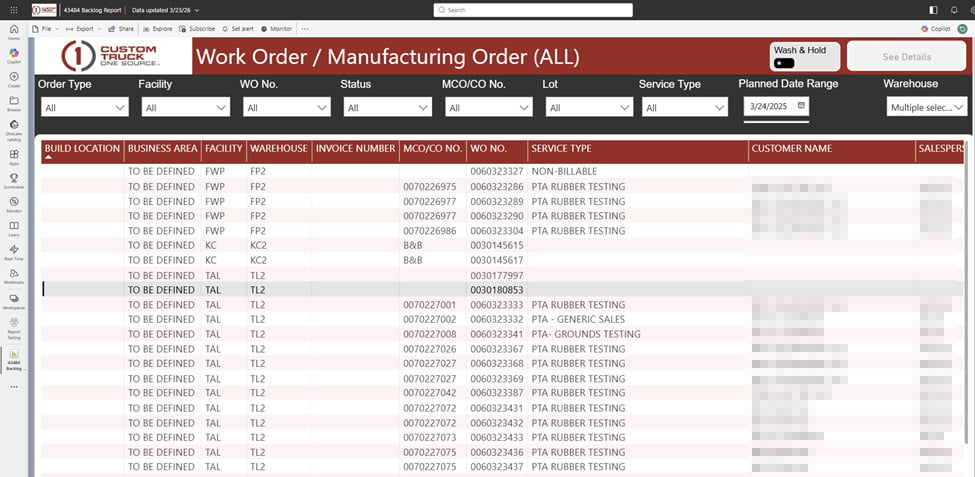
The Work Order / Manufacturing Order Report provides a broader operational view of all rubber testing-related work orders. This includes both active and completed orders across facilities.
Users can:
- Track work orders by status, facility, and service type
- View customer associations and order details
- Identify bottlenecks or delays in processing
- Monitor testing activity across multiple locations
This report is best used for operational oversight and tracking the lifecycle of testing jobs from intake through completion.
3. Testing Results Report
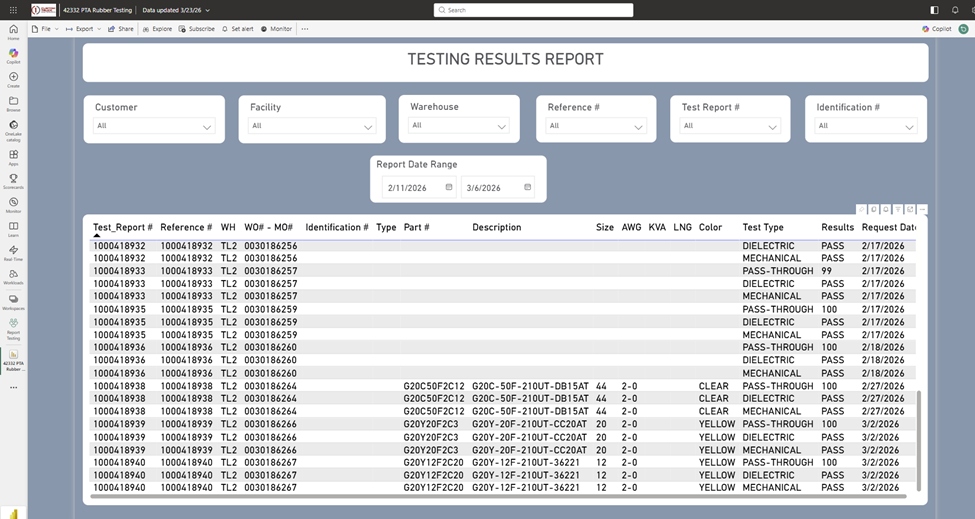
The Testing Results Report contains finalized dielectric testing results and certification data. This is the primary report customers use to review compliance and safety outcomes.
Users can view:
- Individual test records by item or report number
- Test types (dielectric, mechanical, pass-through, etc.)
- Pass/fail results and certification outcomes
- Item specifications such as class, size, and color
- Test and request dates for compliance tracking
This report serves as the official record of completed testing and is commonly used for audit, safety verification, and documentation purposes.
If you need additional support, please reach out to marketing@customtruck.com.